Showing posts with label step by step. Show all posts

Thursday, July 7, 2011

How to Change Country Default Search in Google Chrome - Language customization

I always want to use google in english

Its very simple, You need to edit the “Local State” file and thats all :)
FIRST OPTION:

 In windows XP:
step 1: goto C:\Users\yourusername\AppData\Local\Google\Chrome\User Data\
step2: locate the "Local State" file and delete it. (dont worry when you open chrome again it will be created again with default options when chrome was installed).
step3: open chrome and google it, enjoy :)
In windows7:
step 1: goto C:\Users\yourusername \AppData\Local\Google\Chrome\User Data
step2: locate the "Local State" file and delete it. (dont worry when you open chrome again it will be created again with default options when chrome was installed).
step3: open chrome and google it, enjoy :)
SECOND OPTION:

1. Go to "Options" in chrome 
2. Click "Manage" at the Default Search section
3. Click "Add"
4. Put the name as "Google.COM"
5. Put keyword as "always google.com"
6. Paste this as the URL > http://www.google.com/search?q=%s
7. Click "Ok"
8. Click "Make Default"
9. There you go!, just type the word you want to search in the address bar in Chrome, it'll give results in English page, google.com 

You can now enjoy it ;)

Incoming search terms:

How to change from google.xx to google.com?
How to access Google in your preferred language?  
How to keep Google Chrome always in English 
How do I change my Google search location? 
Can I turn off location-based customization?
How to Switch Chrome’s Default Search to International Google
always diplay Google sites in English
always diplay Google search results in English
How do I reset the default language setting (to English)? Google always starts in


Saturday, March 19, 2011

Google Adsense Error - The publisher must be associated with the developer account . . .

 
AdSense - The publisher must be associated with the developer account before the developer can invoke operations on the publisher's account
You may be unfortunate unlucky enough to face this error when you try to switch on AdSense for your Blogger blog:
"The publisher must be associated with the developer account before the developer can invoke operations on the publisher's account."
Follow simple steps to get out of this error and work with adsense account hassle-free :-)
Just goto Home -> Accounts Settings -> Access and Authorization -> view 3rd-party access

Now under where it says "Hosts " you may see a blogger.com entry with a link next to it "enable access".

Click the link "enable access", and you're back in business :)


This is how it works. Simple :)

Friday, February 18, 2011

How to find a file by name in UNIX/Solaris/Linux OS

Find a file by name in UNIX/Solaris/Linux

  • To find a file such as filename.txt anywhere on the system:

find / -name filename.txt -print

  • Recent operating system versions do not require the print option because this is the default. To limit the search to a specific directory such as /usr:

find /usr -name filename.txt -print

I hope this helps you to find a file in unix/linux/solaris system. Leave a comment plz :)

Sunday, February 6, 2011

Create Separate Profiles in Google Chrome for Family Members


HOW TO CREATE SEPARATE PROFILES FOR MULTIPLE USERS IN CHROME AND ENJOY BROWSING  


Step 1: Open your Google Chrome installation folder that is available at:

For Windows Vista - C:\Users\<username>\AppData\Local\Google\Chrome
For Windows XP - C:\Documents and Settings\<user>\Local
Settings\Application Data\Google\Chrome

Step 2: Open Windows Explorer and switch to the "User Data" folder available inside Chrome installation folder.

Then select the subfolder caleld "default" and make a copy of it in the "User Data" folder itself. Give that copy a name, say, Your_Name. (See screenshot).

chrome-profile


Step 3: (Optional): We will now initialize this new "Your_Name" profile to the factory default settings.

Open "Command Prompt", switch to the Chrome Application folder and run the following command:

chrome.exe --user-data-dir="..\User Data\Your_Name" -first-run

Step 4: So our new user profile is ready. To run Google Chrome using this profile instead of the default profile, just create a shortcut on your desktop, Quick launch bar or your Windows Start Menu.


Right click anywhere on the desktop, choose New -> Shortcut and type the following for location:

For Windows Vista: C:\Users\username\AppData\Local\Google\Chrome\Application\chrome.exe  --user-data-dir="..\User Data\Your_Name"

For Windows XP: C:\Documents and Settings\User\Local Settings\Application Data\Google\Chrome\Application\chrome.exe --user-data-dir="..\User Data\Your_Name"

chrome-icons


Monday, January 17, 2011

How To Fix Google Chrome Crash Problem?

How to Solve the Google Chrome crashes problem

There are two possible solutions, both are mentioned below:
 

Solution#01

  • Click on the Google Chrome shortcut
  • In Target field add “–no-sandbox” or “–in-process-plugins”
  • Click Apply and Try starting Chrome again..

If this wont work in your case, then  try solution#2 below

Solution#02

  • Click on the Google Chrome shortcut
  • In Target field add “–new-http”
  • Click Apply and Try starting Chrome again..

                                                          google chrome crash solution


Hope the will help you to get your chrome working again :-) enjoy chrome with awesome extensions/plugins :)


Saturday, January 8, 2011

how to reload all tabs in chorme?

how to reload all tabs in chorme?

how to reload all tabs in chromium?

 I did an Google Chrome extension that will allow you to reload all tabs

After you install the extension (Download Here), you can reload all the tabs in the current window by pressing "CTRL + SHIFT + R". 

Wednesday, December 8, 2010

SQLPLUS SET COMMAND

SQLPLUS SET COMMAND

Basic

    /* 
        Multiple line comments
        Can go between these delimiters

     */

SET TERM      OFF
-- TERM = ON will display on terminal screen (OFF = show in LOG only)

SET ECHO      ON
-- ECHO = ON will Display the command on screen (+ spool)
-- ECHO = OFF will Display the command on screen but not in spool files.
-- Interactive commands are always echoed to screen/spool.

SET TRIMOUT   ON
-- TRIMOUT = ON will remove trailing spaces from output

SET TRIMSPOOL ON
-- TRIMSPOOL = ON will remove trailing spaces from spooled output

SET HEADING   OFF
-- HEADING = OFF will hide column headings

SET FEEDBACK  OFF
-- FEEDBACK = ON will count rows returned

SET PAUSE     OFF
-- PAUSE = ON .. press return at end of each page

SET PAGESIZE  0  
-- PAGESIZE = height 54 is 11 inches (0 will supress all headings and page brks)

SET LINESIZE  80
-- LINESIZE = width of page (80 is typical)

SET VERIFY    OFF
-- VERIFY = ON will show before and after substitution variables

-- Start spooling to a log file
SPOOL C:\TEMP\MY_LOG_FILE.LOG

--
-- The rest of the SQL commands go here
--
SELECT * FROM GLOBAL_NAME;

SPOOL OFF

Saturday, November 13, 2010

How To Capture a Screen Shot of your Desktop or the Active Window in Windows

How to capture( Snap shot) windows screen without installing new software

Have you ever pressed the PrtScn (print screen) key on your Windows keyboard and wondered why it was there since it never seemed to do anything? Well, it does do something! It copies an image of your screen onto the "clipboard," ready to paste into any graphics program.
How to:
  1. Press the Print Screen key on your keyboard. It may be labeled [Prnt Scrn].
  2. Open Microsoft Paint or any other image editing program of your choice.
  3. Go to the Edit menu and choose Paste.
  4. If prompted to enlarge the image, choose Yes.
  5. Optional: Use your image editor's crop tool to crop out unnecessary portions of the screen shot.
  6. Go to the File Menu and choose Save As.
  7. Navigate to the folder where you want to save the image.
  8. Type a file name for the image.
  9. Select a file type [Generally the GIF format works best].
  10. Click the Save button.
Tips:
Hold the Alt key down while pressing Print Screen to capture only the active window.
This is how you can capture desktop window or any active window. Simple :-)

Friday, November 5, 2010

Built in Mic not working - Windows XP

Built in Mic isnt working DELL LAPTOP - Windows XP


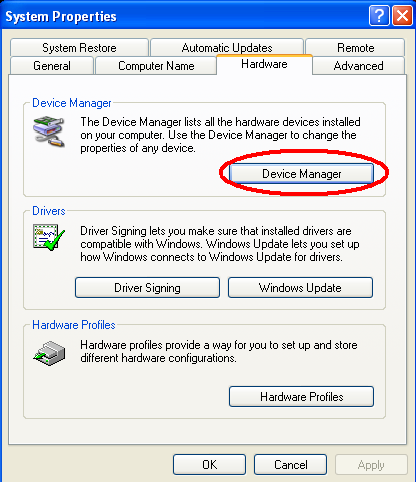
- Right click My Computer
- Click on Properties
- Click on Hardware Tab
- Click on device manager
- Find your sigma tel sound driver in list
- Right click on your sound driver and click properties
- Click on unistall and click on OK button
- Click on Action menu in device manager window
- Click on scan for hardware changes
- Now again point your cursor to sound driver in the list
and install the driver
- It will start working ;-)


Step 01
 
Step 02

Step 03


Step 04

Step 05

Step 06


This is how built-in mic start working. Simple ;-)

Wednesday, November 3, 2010

How to enable / disable javascript in Internet Explorer ?


Enable / disable Javascripting in Internet Explorer

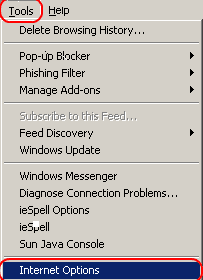
1. Click Tools menu in Internet Explorer window.
2. Click Options then
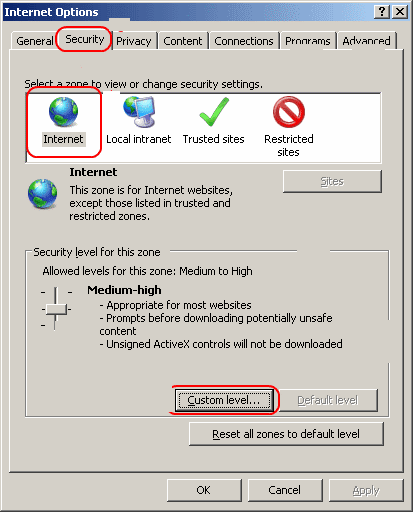
3. Click Security then
4. Click Internet then
5. Click Custom level then
6. Scroll down to Scripting and select the radio button to Enable or Disable it.
7. Click OK, and then click on OK again.
JavaScript should now be enabled or disabled in Internet Explorer.

See/click below for visual aid.

This is how you can disable / enable javascript in Internet Explorer. Simple ;-)

Tuesday, November 2, 2010

How to Create Pages in Blogger ?


Create Pages in Blogger / Blogspot ?

Now it is possible to create pages or navigation bar in your blog.
You create a page similar to creating a blog post. click the Posting | Edit Pages tab, then click New Page. (Note: you can create up to 10 pages.)

This is how you can create pages or navigation bar in your blog. Simple :-)


How to insert checkboxes in Microsoft Word ?


Check-boxes in MS Word ?

Place the cursor where you want to insert the check bo
x.
- Click on View menu then
- Click on Toolbars then
- Click Forms.
The Forms toolbar appears on the screen.
- Click on the check box on the Forms toolbar. This inserts an unchecked box in your document.

To check the check-box;Double-click on the inserted box. This opens the Check Box Form Field Options menu. Select "Checked", if you want a checked box - this inserts a check mark in the box.

This is how you can insert check-boxes in MS Word. Simple ;-)

See/click below for visual aid.


Twitter Delicious Facebook Digg Stumbleupon Favorites More

 
Design by Free WordPress Themes | Bloggerized by Lasantha - Premium Blogger Themes | fantastic sams coupons