Showing posts with label WINDOWS XP. Show all posts

Wednesday, March 28, 2012

how to show hibernate option in shutdown menu


how to enable hibernate option in shutdown menu in windows xp / windows 7

The mentioned process disables the hybrid sleep option.
follow the steps below :)
In the Control Panel Window, Click the Power Options icon
In the 'Change Settings For Plan' window, Click the 'Change advanced power settings'
Click the Plus (+) sign next to the Sleep option
click 'Allow hybrid sleep'. set it to 'Off'
Click the OK button
now you should see the hibernate option.

Saturday, January 8, 2011

how to reload all tabs in chorme?

how to reload all tabs in chorme?

how to reload all tabs in chromium?

 I did an Google Chrome extension that will allow you to reload all tabs

After you install the extension (Download Here), you can reload all the tabs in the current window by pressing "CTRL + SHIFT + R". 

Saturday, November 13, 2010

How To Capture a Screen Shot of your Desktop or the Active Window in Windows

How to capture( Snap shot) windows screen without installing new software

Have you ever pressed the PrtScn (print screen) key on your Windows keyboard and wondered why it was there since it never seemed to do anything? Well, it does do something! It copies an image of your screen onto the "clipboard," ready to paste into any graphics program.
How to:
  1. Press the Print Screen key on your keyboard. It may be labeled [Prnt Scrn].
  2. Open Microsoft Paint or any other image editing program of your choice.
  3. Go to the Edit menu and choose Paste.
  4. If prompted to enlarge the image, choose Yes.
  5. Optional: Use your image editor's crop tool to crop out unnecessary portions of the screen shot.
  6. Go to the File Menu and choose Save As.
  7. Navigate to the folder where you want to save the image.
  8. Type a file name for the image.
  9. Select a file type [Generally the GIF format works best].
  10. Click the Save button.
Tips:
Hold the Alt key down while pressing Print Screen to capture only the active window.
This is how you can capture desktop window or any active window. Simple :-)

Friday, November 5, 2010

Built in Mic not working - Windows XP

Built in Mic isnt working DELL LAPTOP - Windows XP


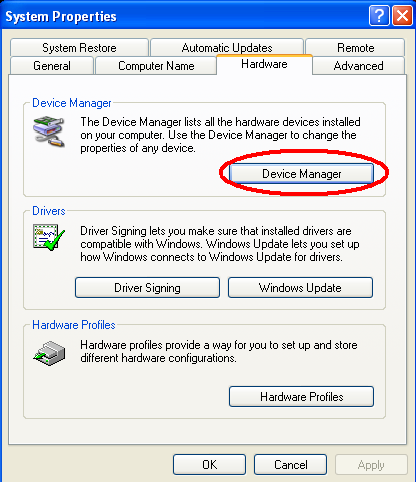
- Right click My Computer
- Click on Properties
- Click on Hardware Tab
- Click on device manager
- Find your sigma tel sound driver in list
- Right click on your sound driver and click properties
- Click on unistall and click on OK button
- Click on Action menu in device manager window
- Click on scan for hardware changes
- Now again point your cursor to sound driver in the list
and install the driver
- It will start working ;-)


Step 01
 
Step 02

Step 03


Step 04

Step 05

Step 06


This is how built-in mic start working. Simple ;-)

Twitter Delicious Facebook Digg Stumbleupon Favorites More

 
Design by Free WordPress Themes | Bloggerized by Lasantha - Premium Blogger Themes | fantastic sams coupons